Notion Productivity Hub for Beginners: A Step-by-Step Guide
Move beyond scattered notes and to-do lists by building a centralized digital workspace that organizes your tasks, projects, and knowledge for sustained focus and clarity.
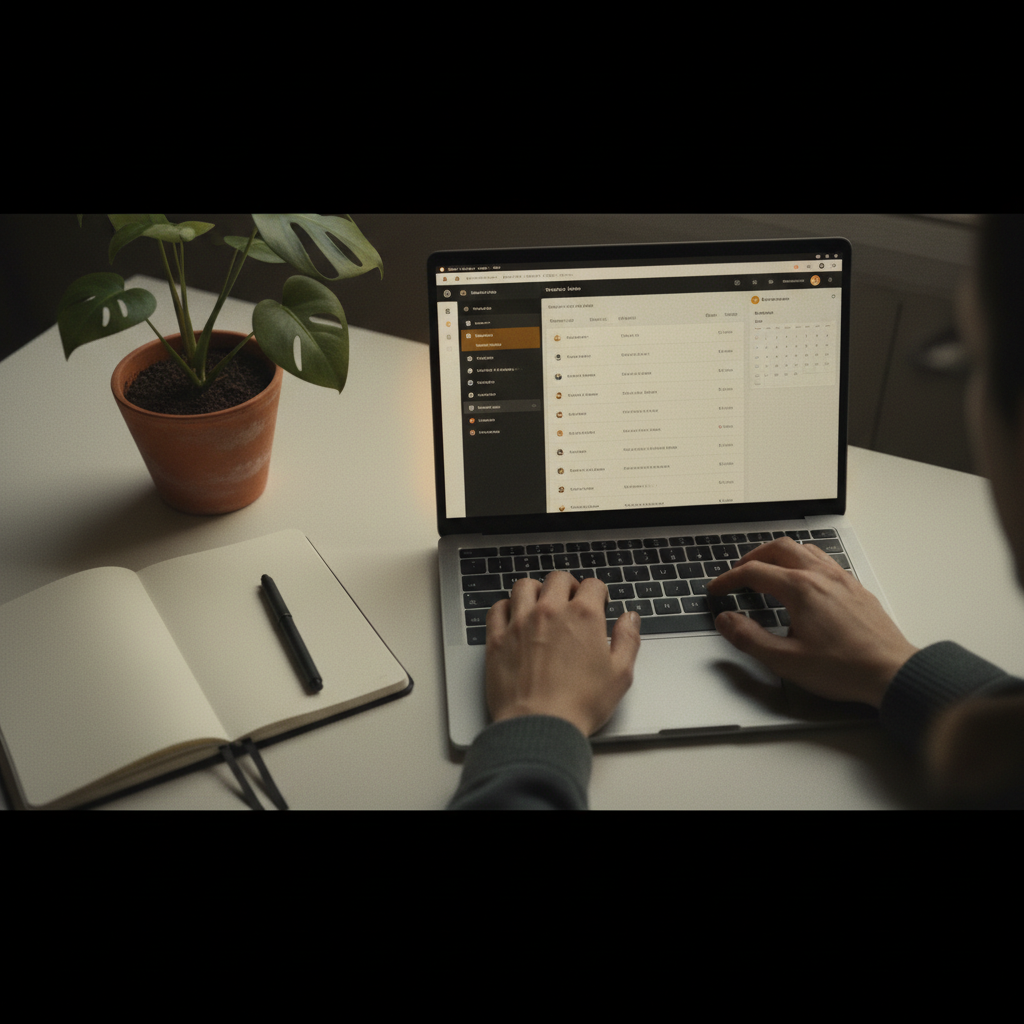
- A productivity hub centralizes all your digital information, from daily tasks to long-term goals, into one interconnected system.
- Building your hub on a platform like Notion or Coda allows for infinite customization with databases, templates, and linked pages.
- Start with a simple framework like PARA (Projects, Areas, Resources, Archives) to avoid initial overwhelm and build a scalable structure.
- Your hub is a living system; it should evolve with your projects and priorities, so don't aim for immediate perfection.
- Focus on creating core databases for tasks, projects, and notes first, then build a dashboard to surface what's relevant now.
- This system serves as a 'second brain,' offloading mental clutter and freeing up cognitive resources for deep, creative work.
If you've ever felt the low-grade hum of anxiety that comes from having your tasks in one app, your project plans in another, and your important notes scattered across a dozen documents, you're not alone. The friction of a fragmented digital life is a modern tax on our attention. The solution lies in creating a unified system, a central source of truth. This guide will walk you through the process of building your first **Notion productivity hub** — a foundational step toward a more organized and focused digital existence.
§What Exactly Is a Digital Productivity Hub?
Think of a productivity hub not as another app, but as a custom-built headquarters for your life and work. It's a digital environment where your daily to-do lists, long-term goals, meeting notes, creative ideas, and reference materials all live together in a coherent, interconnected structure. Unlike single-purpose apps (like a standalone task manager or note-taker), a hub built in a tool like Notion or Coda is a malleable 'workspace' that you design to fit your unique brain.
The core principle is centralization. As Dr. Gloria Mark at the University of California, Irvine, has extensively researched, context switching—the act of moving between unrelated tasks and information silos—carries a significant cognitive cost. A 2024 meta-analysis in the Journal of Experimental Psychology: Applied noted that these switches can consume up to 40% of a knowledge worker's productive time. Your hub acts as a bulwark against this fragmentation. By keeping everything in one place, linked and organized, you create a seamless flow between planning, doing, and learning.
§Why Does Organizing Your Digital Life This Way Matter in 2026?
The argument for a centralized digital system has never been more compelling. The volume of information we manage—from Slack messages and email threads to project briefs and online articles—is relentlessly increasing. Without a system to process it, we default to a state of reactive-ness, our attention pulled in a thousand directions. A well-designed hub helps you transition from being a passive recipient of information to an active architect of your focus.
It's about building what productivity expert Tiago Forte calls a "Second Brain." Your biological brain is brilliant at generating ideas but notoriously poor at remembering them on command. A digital hub serves as a reliable external memory system, or exocortex. It remembers the details—the project deadline, the key takeaway from a book, the steps in a recurring process—so your mind is free to do what it does best: think, create, and solve problems. This isn't about becoming a productivity robot; it's about creating the conditions for more human, creative work by offloading the administrative burden of modern life.
“The goal is not to manage every single piece of information perfectly. It's to build a trusted system that allows your mind to let go, confident that what's important is captured and can be found when needed.”
§How to Build Your Foundational Notion Productivity Hub: A Step-by-Step Guide
Building your hub feels daunting, but a structured approach makes it manageable. We'll start with the essential architecture. The goal is to create a functional skeleton that you can flesh out over time. Don't worry about aesthetics or advanced features yet; focus on function.
Step 1: Define Your Structure with the PARA Method
Before creating a single page, you need an organizing principle. The PARA method, developed by Tiago Forte, is the gold standard for its simplicity and action-oriented nature. It divides all information into four top-level categories:
- **Projects:** A series of tasks linked to a goal with a deadline (e.g., 'Launch Q3 Marketing Campaign,' 'Plan Vacation to Japan').
- **Areas:** Spheres of activity with a standard to be maintained over time (e.g., 'Health & Fitness,' 'Finances,' 'Professional Development').
- **Resources:** Topics or interests of ongoing curiosity (e.g., 'AI in creativity,' 'Japanese cooking,' 'Decision-making models').
- **Archives:** Inactive items from the other three categories (e.g., completed projects, old areas, resources you no longer need).
Create four top-level pages in Notion, one for each PARA category. This structure is powerful because it organizes information based on its actionability, ensuring that what you need most (your active projects) is always front and center.
Step 2: Create Three Master Databases
Instead of creating separate to-do lists for every project, the power of a Notion productivity hub comes from using centralized databases. A database is like a spreadsheet on steroids, where every row is its own customizable page. Create these three as full-page databases (we'll link to them later):
- **🗂️ Projects Database:** This will house all your projects. Key properties (columns) to add: 'Status' (Not Started, In Progress, Done), 'Timeline' (a date property with an end date), and a 'Relation' property that will link to the Areas database (see below).
- **✅ Tasks Database:** Your master to-do list for everything. Key properties: 'Due Date,' 'Priority' (High, Med, Low), 'Status' (To Do, Doing, Done), and a 'Relation' property to link each task to a specific Project.
- **📚 Notes & Resources Database (Your Second Brain):** A flexible repository for everything else—meeting notes, book summaries, web clippings, ideas. Key properties: 'Type' (Book Summary, Article, Idea, Meeting Note), 'Status' (To Read, In Progress, Learned), and a 'Relation' property to link notes to relevant Projects or Areas.
The magic here is the 'Relation' property. By linking a task to a project, you can open your 'Launch Q3 Marketing Campaign' project page and see *only* the tasks related to that project. This is how you connect everything.
Step 3: Design Your Dashboard
Your dashboard is your cockpit. It's the one page you'll open every morning to get your bearings. This is not where your information *lives*, but where it is *surfaced*. Create a new blank page called 'Home' or 'Dashboard'.
On this page, use the `/linked view of database` command to create views of your master databases. Don't copy the database, link to it. Here are some essential views for a starter dashboard:
- **Today's Tasks:** A linked view of your 'Tasks Database', filtered to show only tasks where the 'Due Date' is 'Today' and 'Status' is not 'Done'.
- **Active Projects:** A linked view of your 'Projects Database', filtered to show only projects where 'Status' is 'In Progress'. Display it as a gallery or list.
- **Quick Capture:** A simple text box or a filtered view of your 'Notes & Resources' database to quickly jot down ideas without breaking your flow.
| Database | Essential Property (Field) | Property Type | Example Use |
|---|---|---|---|
| Tasks | Due Date | Date | Assign a deadline to a task |
| Tasks | Project | Relation (to Projects DB) | Link 'Draft email copy' task to 'Newsletter Launch' project |
| Projects | Status | Select | Track if a project is 'On Hold' or 'In Progress' |
| Projects | Area | Relation (to Areas pages) | Link 'Q3 Financial Review' project to 'Finances' area |
| Notes & Resources | Type | Select | Categorize a note as 'Book Summary', 'Article', or 'Idea' |
| Notes & Resources | URL | URL | Save the source link for a clipped article |
§Beyond the Basics: Coda vs. Notion and Advanced Setups
While this guide focuses on Notion due to its popularity, platforms like Coda offer a similar, and in some ways more powerful, alternative. A **Coda productivity hub** shines with its 'Packs' feature, which allows for deep integration with other apps like Gmail, Slack, and Jira directly within your document. Its formula engine is also generally considered more robust than Notion's, behaving more like a traditional spreadsheet. If your work requires complex calculations or pulling in live data from other services, Coda might be a better fit. Notion, on the other hand, excels in its user experience, simplicity, and flexibility for personal knowledge management and aesthetically pleasing layouts.
Regardless of the tool, the principles remain the same. The goal is a digital workspace setup that reflects how you think and work. As you get more comfortable, you can explore adding a goal setting template linked to your projects, a habit tracker, or even a lightweight CRM to manage your professional contacts. The key is to add complexity only when you feel a specific need for it.
Adoption of Integrated Workspace Tools (2020-2026)
§How Your Notion Productivity Hub Will Evolve Over Time
The system you build today is not the system you will use a year from now. This is a feature, not a bug. As you complete projects, they will move from 'Projects' to 'Archives'. As your priorities shift, your 'Areas' will change. Your 'Dashboard' might need a new view to highlight an upcoming launch. This constant, gentle iteration is what keeps the system alive and useful.
Schedule a small, recurring task—perhaps for 15 minutes every Sunday—to review and tidy your hub. Are there tasks without projects? Notes that need to be processed? Is your dashboard still showing you the most important information? This small habit of maintenance is the most critical factor for the long-term success of your **Notion productivity hub**. It ensures your digital world remains a place of clarity and focus, rather than another source of digital clutter.
- Commit to using the system for two full weeks before making any major changes. Give the structure time to settle.
- Start capturing everything. Use Notion's Web Clipper to save articles and the mobile app to jot down ideas on the go. The goal is to build trust in your system.
- Practice the weekly review. Set aside 15-30 minutes each week to process your inboxes, organize notes, and plan the week ahead.
- Choose one Area of your life (e.g., 'Learning') and build it out more deeply. Create a specific template for book notes within your Notes & Resources database.
- Explore one new feature, such as Notion's 'Button' feature to automate recurring tasks or creating a 'Template' for new projects.
- Connect one other app to your workflow. Consider syncing your calendar or using an integration service to send tasks to Notion.
- Share a single page or database with a collaborator to understand how these hubs can be used for teamwork.
§Frequently asked questions
Q.What is the point of a Notion productivity hub?
The point of a Notion productivity hub is to create a single, centralized digital system for managing everything in your life and work. By consolidating tasks, notes, projects, and goals, it reduces mental clutter, minimizes context switching between apps, and helps you stay focused and organized.
Q.Is Notion good for a productivity hub?
Yes, Notion is exceptionally good for a productivity hub due to its flexibility. Its database features allow you to create interconnected systems for tasks, projects, and notes. The ability to customize pages, create templates, and build dynamic dashboards makes it a powerful tool for personal organization.
Q.How long does it take to set up a Notion productivity hub?
A basic, functional Notion productivity hub can be set up in about 2-3 hours following a structured guide. Creating the core databases and a simple dashboard is quick. The system will then evolve over weeks and months as you refine it based on your personal workflow and needs.
Q.What's the difference between a Notion productivity hub and a second brain?
A 'second brain' is the concept of an external system for storing and retrieving knowledge, freeing up your mental resources. A Notion productivity hub is a practical implementation of that concept. It's the tool and structure you build to serve as your digital second brain.
Q.Can I use a template instead of building from scratch?
Yes, you can use a pre-built template, which can be a great way to start. However, building your own system, even a simple one, forces you to understand the underlying logic. This makes it much easier to customize and adapt the hub to your specific needs later on.
Q.Is Coda better than Notion for a productivity hub?
Neither is objectively 'better'; they serve different strengths. Coda is often preferred for data-heavy workflows and deep integrations with other apps. Notion is typically favored for its user-friendly interface, aesthetic flexibility, and powerful personal knowledge management capabilities. The best choice depends on your specific needs.
Q.What is the most important part of a personal task management system?
The most crucial part is trust. You must trust that what you capture will not be lost and that the system will remind you of what's important at the right time. This trust is built through consistent use, regular reviews, and ensuring every task has a clear next action and context.
Q.How do I avoid getting overwhelmed when setting up my Notion hub?
Start with the absolute minimum: a task list, a project list, and a place for notes. Use the PARA method to keep your structure simple. Resist the urge to add complex features or perfect the aesthetics initially. Focus on function first and let the system grow organically with your needs.
Related Reading

Featured Guides

7 LinkedIn Personal Branding Mistakes to Avoid in 2026
7 min read

7 AI Tools for Rapid Skill Building & Career Growth
5 min read

How to Talk to Kids About the Cost of Living: An Age-Appropriate Guide
9 min read

7 Essential Practices for Building Entrepreneur Resilience in Uncertain Times
9 min read